Settings Reference
Complete reference for all Yooz Whisper settings.
Accessing Settings
- Click the Whisper icon in the menu bar
- Click the gear icon (⚙️)
- Settings window opens with tabs
General Tab
Core application settings.
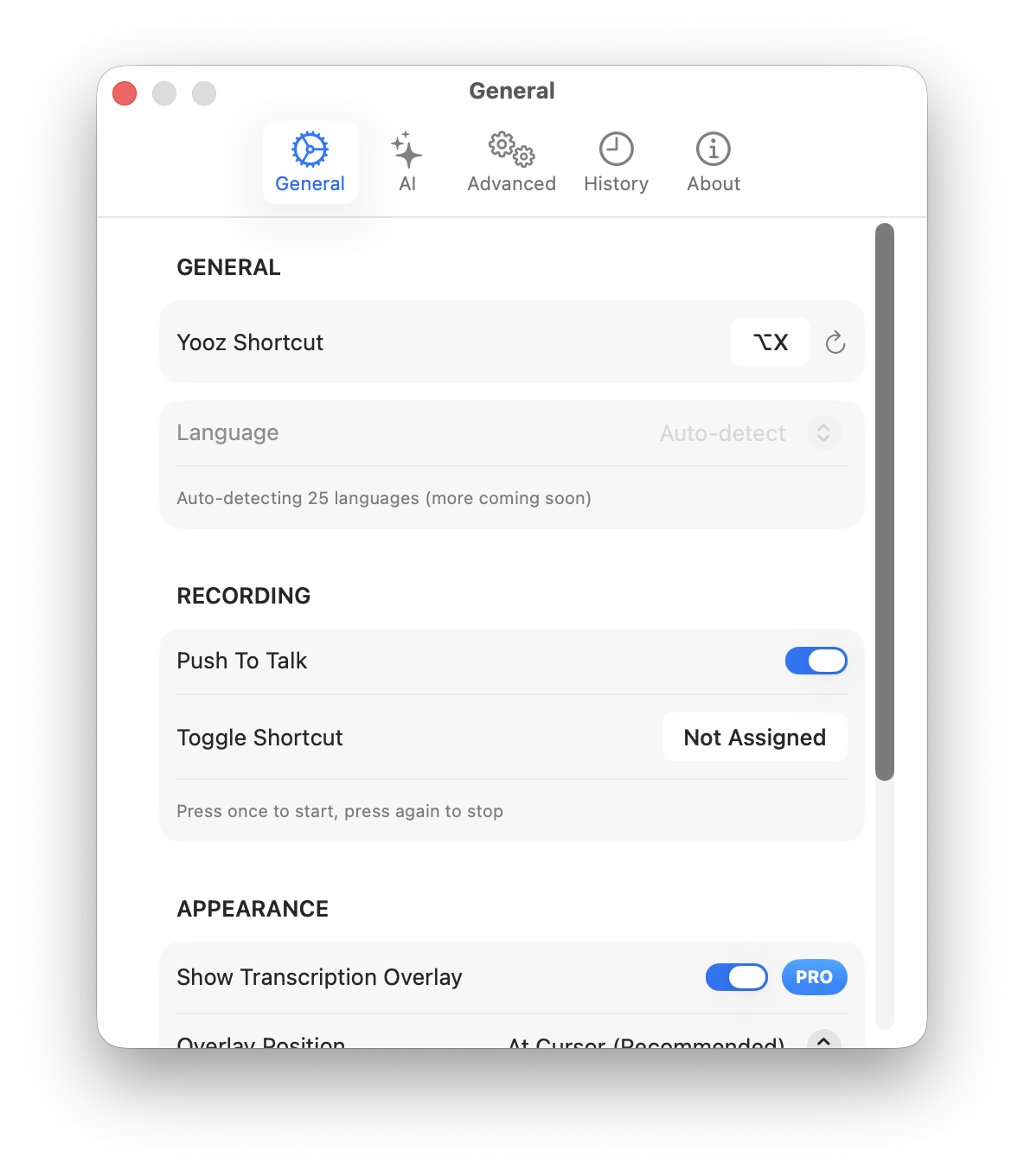
Language
Transcription Language
Select the language you'll be speaking:
| Setting | Description |
|---|---|
| Language | Primary dictation language |
| Auto-detect | Not currently available |
Supported Languages:
- English (US, UK, AU, and more)
- Spanish (multiple variants)
- French
- German
- Chinese (Mandarin, Cantonese)
- Japanese
- Korean
- Arabic
- Portuguese
- Italian
- And many more (via Apple speech recognition)
Switch languages when you need to dictate in a different language. The setting affects all transcriptions until changed.
Keyboard Shortcut
Global Shortcut
Set a keyboard combination to start/stop recording:
| Setting | Description |
|---|---|
| Shortcut | Key combination (e.g., Option + Space) |
| Clear | Remove current shortcut |
To set:
- Click in the shortcut field
- Press desired key combination
- Shortcut saves automatically
Recommended shortcuts:
Option + Space- Natural, accessibleControl + Option + W- App-specificFn + F5- Traditional dictation
Output Options
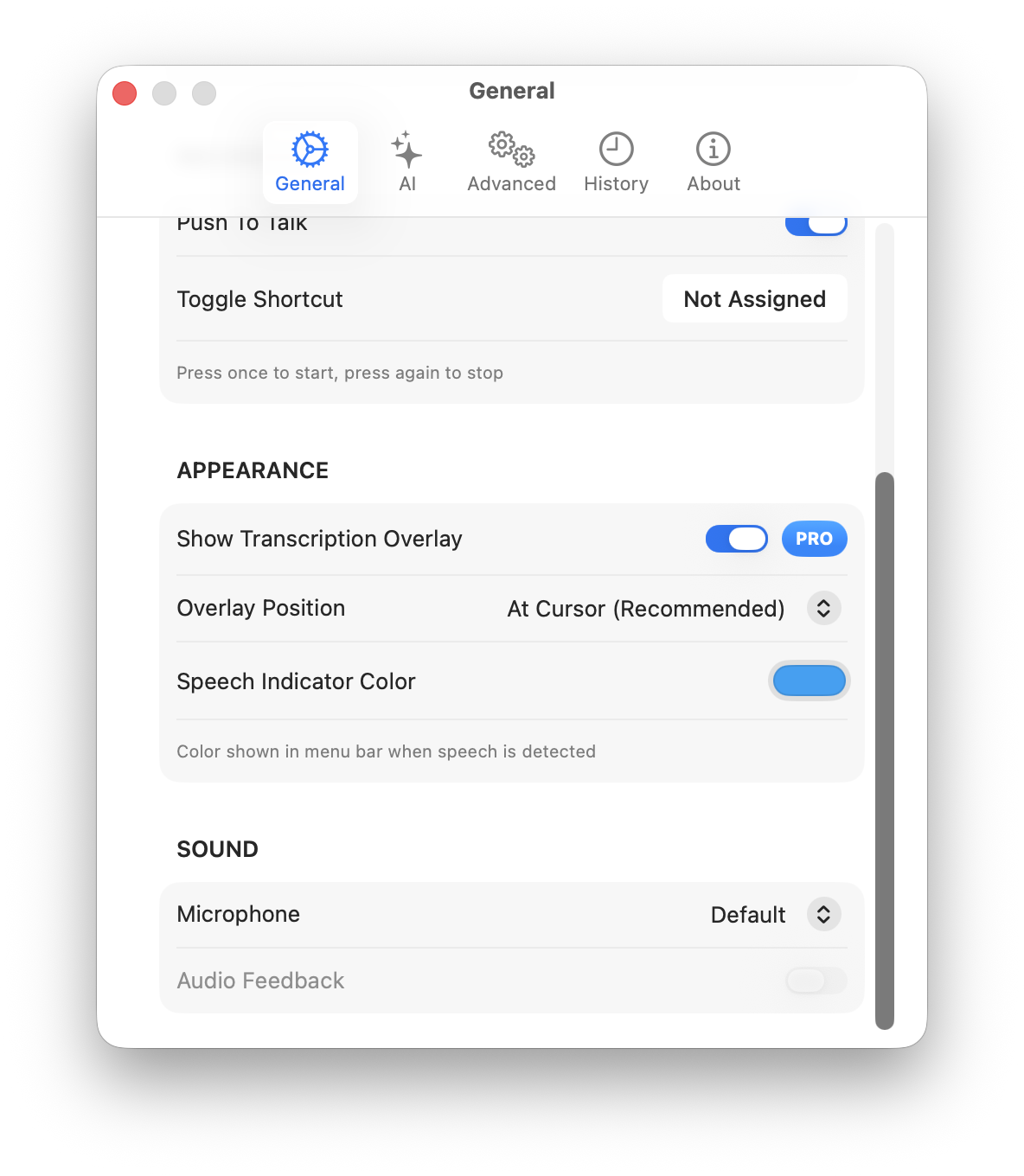
Configure how transcribed text is formatted:
| Setting | Description | Default |
|---|---|---|
| Add trailing space | Space after transcription | On |
| Auto-capitalize | Capitalize first letter | On |
| Include punctuation | Process spoken punctuation | On |
| Trim whitespace | Remove extra spaces | On |
Output Mode
| Setting | Description |
|---|---|
| Clipboard | Copy text to clipboard |
| Direct insert | Type at cursor (requires Accessibility) |
| Both | Copy to clipboard AND insert |
Startup
| Setting | Description | Default |
|---|---|---|
| Launch at login | Start when you log in | Off |
| Show in Dock | Display Dock icon | Off |
AI Tab
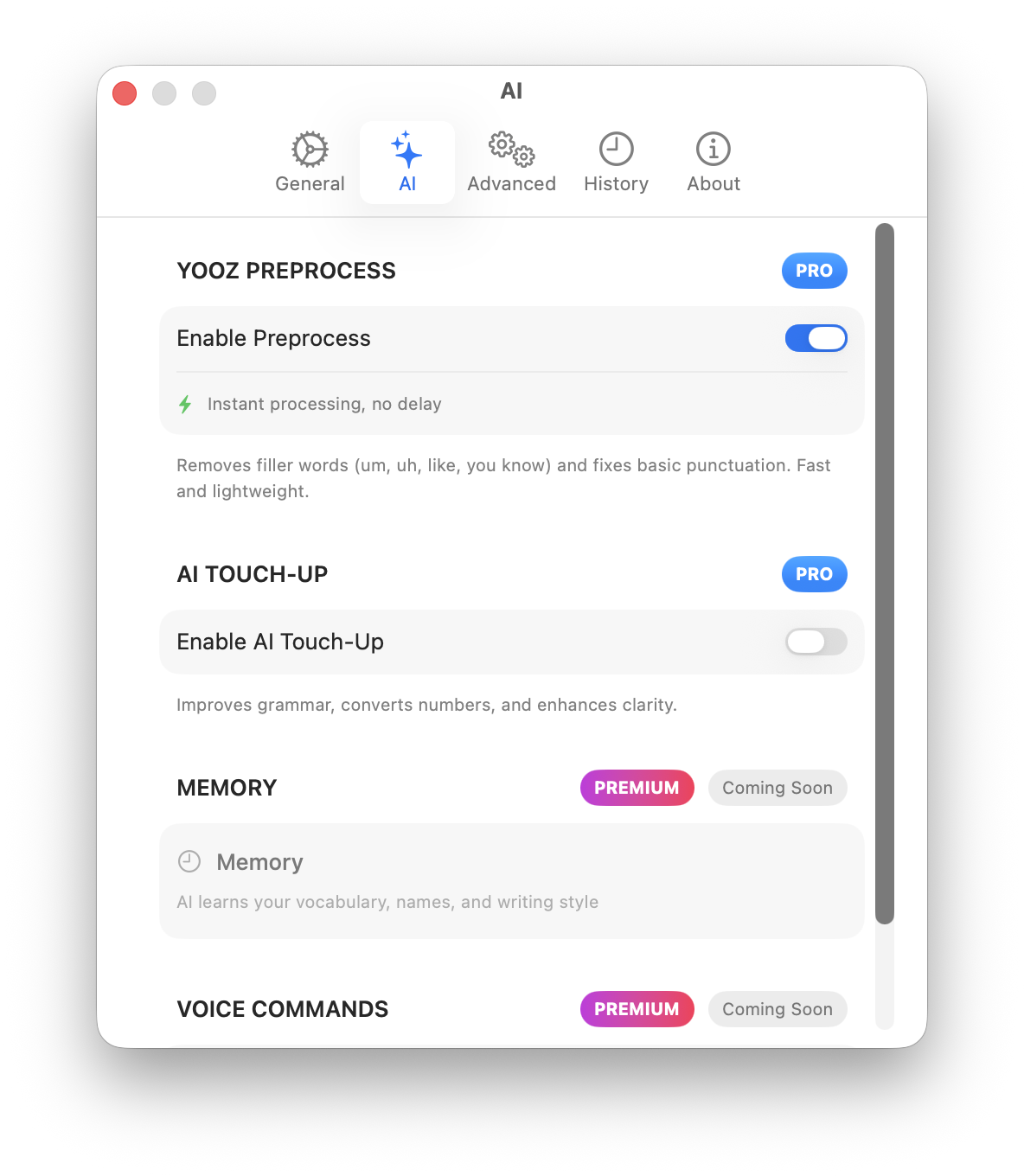
Apple Intelligence-powered features.
Requirements
AI features require:
- macOS 15.0 (Sequoia) or later
- Apple Silicon (M1 or later)
- Apple Intelligence enabled in System Settings
YOOZ Preprocess
Real-time AI enhancement during transcription:
| Setting | Description | Default |
|---|---|---|
| Enable | Turn on AI preprocessing | Off |
| Enhancement level | Light / Medium / Strong | Medium |
Enhancement Level:
| Level | Effect |
|---|---|
| Light | Minimal changes, mostly punctuation |
| Medium | Balanced improvement (recommended) |
| Strong | Maximum formatting and cleanup |
AI Touch-Up
Post-transcription AI refinement:
| Setting | Description | Default |
|---|---|---|
| Enable | Allow Touch-Up button | On (when AI available) |
| Auto-apply | Apply automatically after recording | Off |
Advanced AI Options
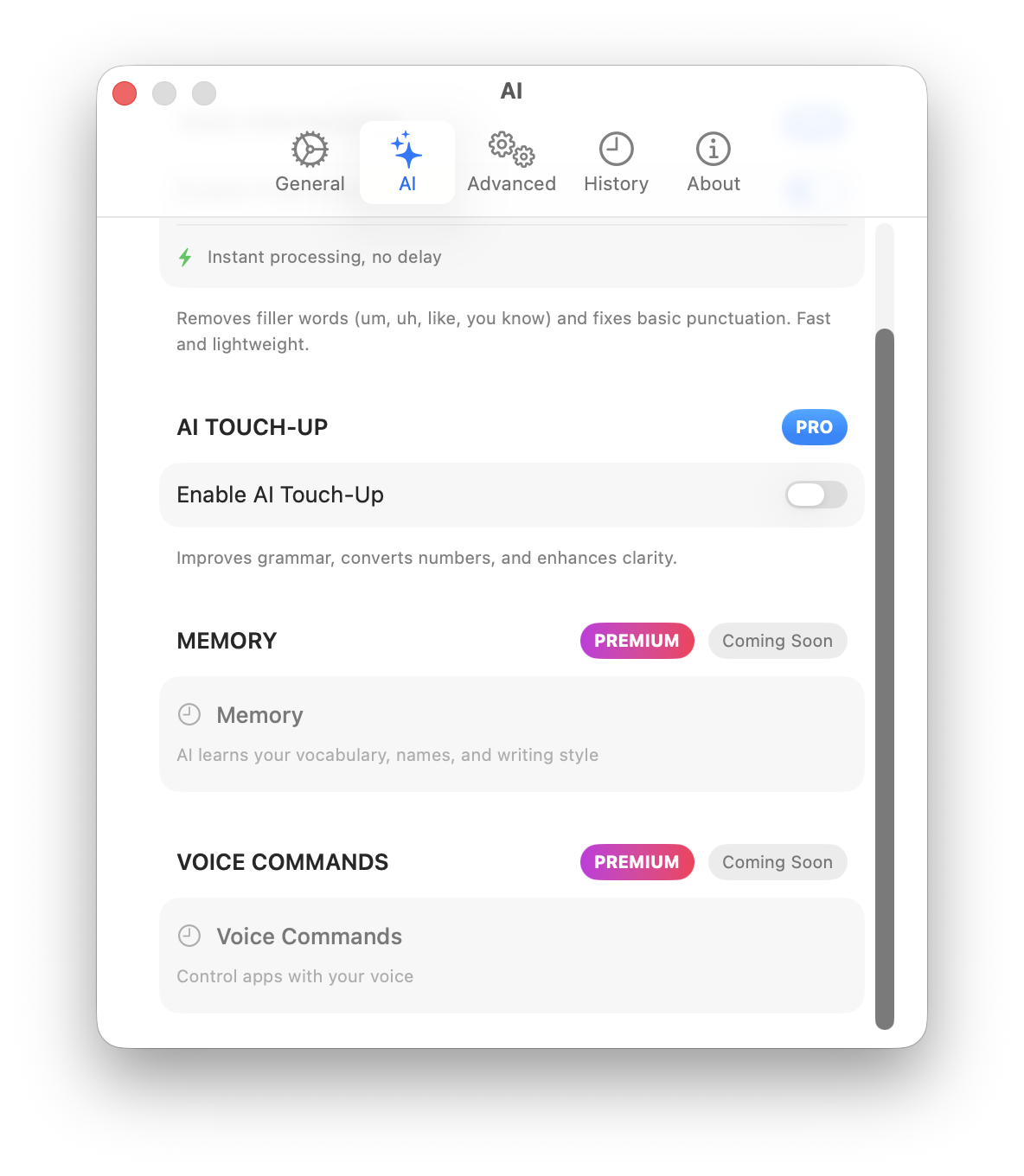
| Setting | Description | Default |
|---|---|---|
| Preserve technical terms | Keep specialized vocabulary unchanged | Off |
| Format paragraphs | Auto-create paragraph breaks | On |
| Improve grammar | Fix minor grammar issues | On |
All AI features use Apple's on-device Foundation Models. Your data never leaves your Mac.
History Tab
View and manage past transcriptions.
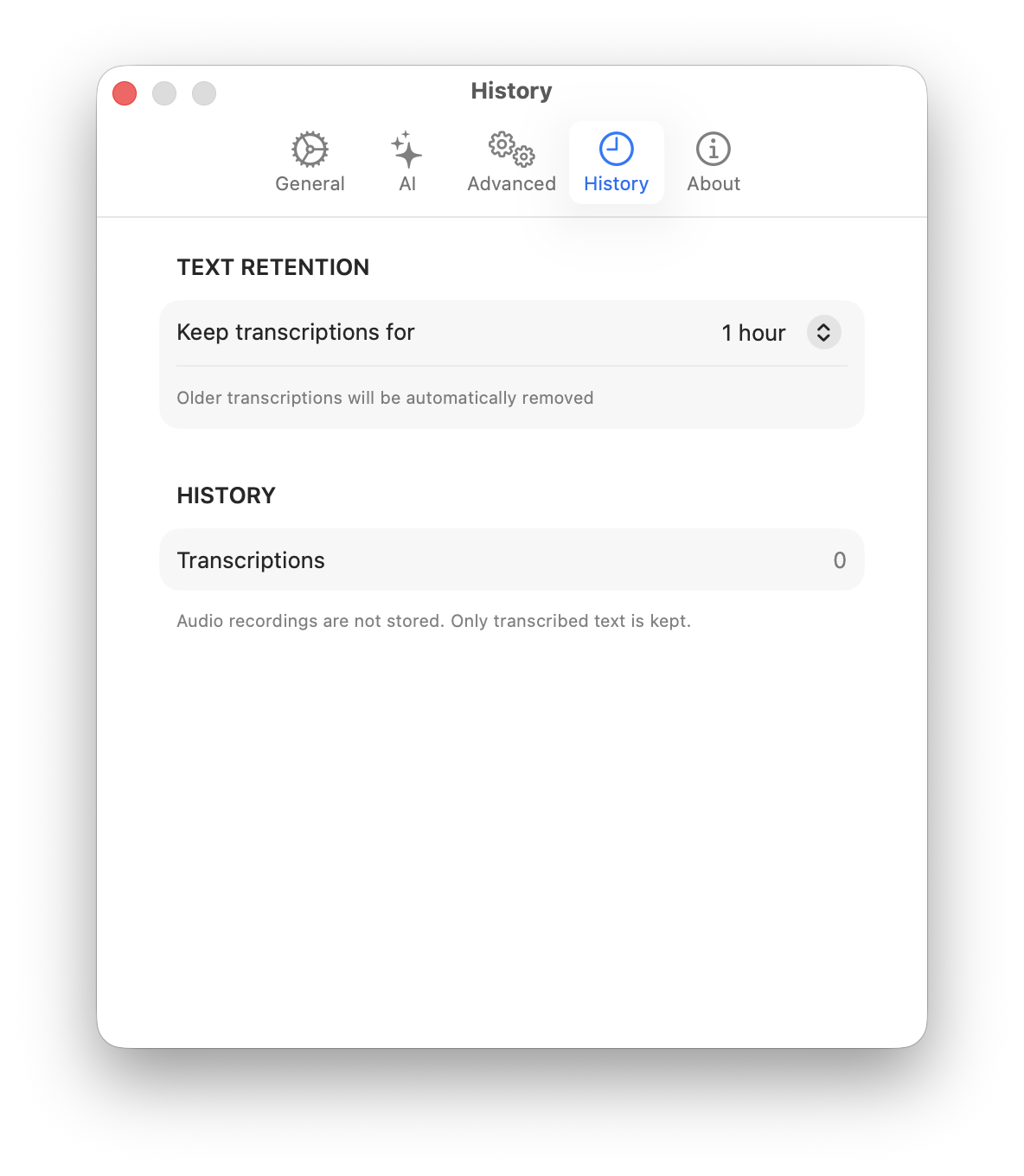
History List
| Element | Description |
|---|---|
| Timestamp | When transcription was made |
| Preview | First line of transcription |
| Full text | Click to expand |
History Actions
| Action | Description |
|---|---|
| Copy | Copy transcription to clipboard |
| Delete | Remove individual entry |
| Clear All | Delete entire history |
History Settings
| Setting | Description | Default |
|---|---|---|
| Enable history | Save transcriptions | On |
| History limit | Max entries to keep | Varies by tier |
| Auto-clear | Clear after X days | Off |
History Limits by Tier
| Tier | Limit |
|---|---|
| Free | 50 entries |
| Pro | Unlimited |
| Premium | Unlimited |
Advanced Tab
Technical and power-user settings.
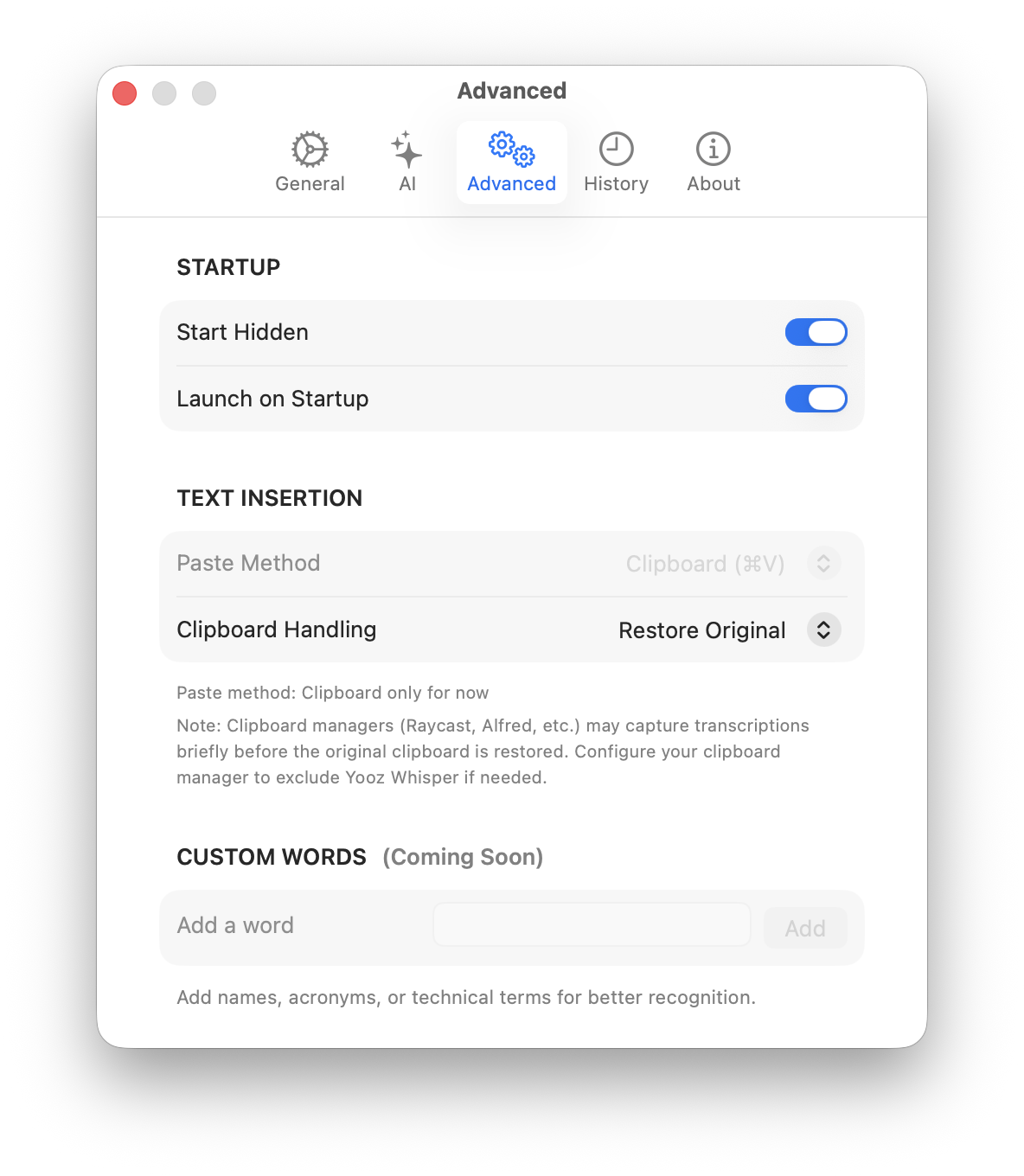
Audio Settings
| Setting | Description | Default |
|---|---|---|
| Input device | Microphone selection | System default |
| Sensitivity | Audio threshold | Auto |
| Noise reduction | Filter background noise | On |
Processing
| Setting | Description | Default |
|---|---|---|
| Real-time feedback | Show text as you speak | On |
| Processing timeout | Max recording duration | None |
| Buffer size | Audio buffer | Automatic |
Behavior
| Setting | Description | Default |
|---|---|---|
| Sound effects | Play start/stop sounds | On |
| Visual feedback | Show recording indicator | On |
| Confirm before clear | Ask before clearing history | On |
Debug Options
For troubleshooting:
| Setting | Description | Default |
|---|---|---|
| Verbose logging | Extended log output | Off |
| Show audio levels | Display input meter | Off |
Debug options may impact performance. Enable only when troubleshooting.
About Tab
App information and support.
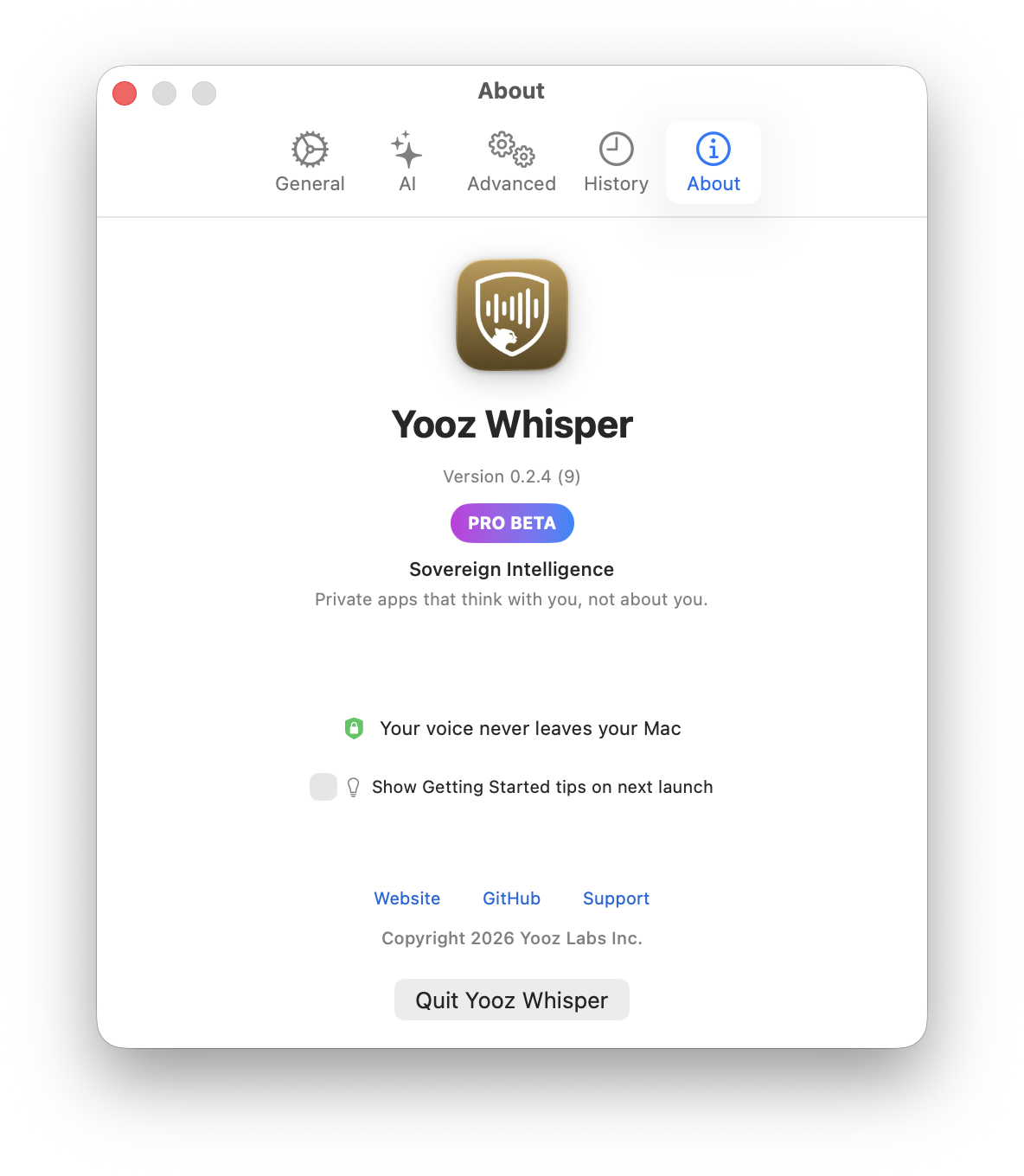
Version Information
| Field | Description |
|---|---|
| Version | Current app version |
| Build | Build number |
| macOS | System version |
Subscription Status
| Field | Description |
|---|---|
| Tier | Free / Pro / Premium |
| Status | Active / Expired |
| Renewal | Next billing date |
Support Links
| Link | Description |
|---|---|
| Documentation | Opens online docs |
| Contact Support | Email support |
| Privacy Policy | View privacy policy |
| Terms of Service | View terms |
Actions
| Button | Description |
|---|---|
| Check for Updates | Look for new version |
| Restore Purchases | Restore subscription |
| Rate App | Open App Store review |
Future Settings
Additional settings tabs are planned:
- Stats - Usage statistics and insights
- Integrations - Third-party app connections
- Themes - Appearance customization
Settings Sync
Local Storage
All settings are stored locally:
- In macOS preferences system
- Backed up with Time Machine
- Not synced to cloud
Resetting Settings
To reset to defaults:
- Quit Yooz Whisper
- Open Terminal
- Run:
defaults delete com.yooz.whisper - Relaunch Yooz Whisper
This removes all customizations. Your history is also stored separately and may not be affected.
Troubleshooting Settings
Settings Not Saving
Solutions:
- Ensure app has disk permissions
- Check disk space
- Restart the app
- Reset settings if needed
Shortcut Not Working
Solutions:
- Check for conflict with other apps
- Try a different combination
- Ensure Whisper is running
- Restart the app
AI Settings Grayed Out
Solutions:
- Update to macOS 15.0+
- Verify Apple Silicon Mac
- Enable Apple Intelligence in System Settings
- Wait for model download
- Restart Yooz Whisper
Learn More
- Getting Started - Setup walkthrough
- Voice Typing - Recording features
- AI Features - AI enhancement details
- Privacy - Data handling