Voice Typing
Core voice-to-text features in Yooz Whisper.
How It Works
Yooz Whisper uses Apple's on-device speech recognition:
- Capture - Your microphone records audio
- Process - Speech is converted to text locally
- Output - Text is copied to clipboard or inserted directly
- Discard - Audio is immediately deleted (never stored)
All processing happens on your Mac. Nothing is sent to any server.
Recording
Starting a Recording
Menu Bar:
- Click the Whisper icon
- Click the Record button (microphone icon)
- Start speaking
Keyboard Shortcut:
- Press your configured shortcut (e.g.,
Option + Space) - Start speaking
Popover closes: Recording continues in background with indicator.
Stopping a Recording
- Click the Stop button
- Press the keyboard shortcut again
- Click the Whisper icon and Stop
Recording Indicator
When recording:
- Menu bar icon changes to show active recording
- Visual feedback in popover
- Audio level indicator (optional)
Output Options
Clipboard Mode
Default behavior:
- Transcribed text goes to clipboard
- Paste with
Cmd + V - Works in all applications
Best for:
- Maximum compatibility
- When you want to review before pasting
- Multiple pastes of same transcription
Direct Insert Mode
With Accessibility permission:
- Text types directly at cursor
- No paste step needed
- More seamless workflow
Requires:
- Accessibility permission granted
- Cursor positioned in text field
- Application supports text input
Output Format Options
Configure in General settings:
| Option | Description |
|---|---|
| Add trailing space | Space after transcription |
| Auto-capitalize | Capitalize first letter |
| Add punctuation | Include spoken punctuation |
| Trim whitespace | Remove extra spaces |
Language Support
Selecting Language
- Open Settings → General
- Choose Transcription Language
- Select from available languages
Supported Languages
Yooz Whisper supports all languages available in Apple's speech recognition:
Major Languages:
- English (multiple variants)
- Spanish
- French
- German
- Chinese (Mandarin, Cantonese)
- Japanese
- Korean
- Portuguese
- Italian
- Arabic
- And many more...
Language Detection
- Currently: Manual language selection
- Single language per recording
- Switch via settings when needed
If you frequently switch languages, set up the keyboard shortcut for quick settings access, or use the menu bar to switch between your common languages.
Punctuation
Spoken Punctuation
Say punctuation naturally:
| Say This | Gets This |
|---|---|
| "period" | . |
| "comma" | , |
| "question mark" | ? |
| "exclamation mark" | ! |
| "colon" | : |
| "semicolon" | ; |
| "open quote" | " |
| "close quote" | " |
| "new line" | (line break) |
| "new paragraph" | (paragraph break) |
Auto-Punctuation
With AI features enabled:
- Automatic punctuation based on context
- Natural sentence structure
- Improved formatting
See AI Features for details.
Text Formatting
Basic Formatting
Standard dictation includes:
- Sentence capitalization
- Proper spacing
- Basic punctuation (when spoken)
Enhanced Formatting (AI)
With YOOZ Preprocess or AI Touch-Up:
- Paragraph structure
- Improved punctuation
- Grammar cleanup
- Natural flow
Recording Tips
For Best Accuracy
Speaking style:
- Normal conversational pace
- Clear pronunciation
- Avoid mumbling
- Brief pauses between sentences
Environment:
- Reduce background noise
- Minimize echo
- Consistent microphone distance
- Avoid covering the microphone
Content:
- Speak in complete thoughts
- Use natural language
- Say punctuation when needed
- Review and edit as needed
Common Issues
Low accuracy:
- Check microphone input level
- Reduce background noise
- Speak more clearly
- Verify correct language selected
Missing words:
- Speak at moderate pace
- Avoid speaking too fast
- Ensure microphone access enabled
Wrong language output:
- Check language setting in General tab
- Match language to what you're speaking
History
Viewing History
- Open Settings → History
- See list of recent transcriptions
- Click to copy any previous transcription
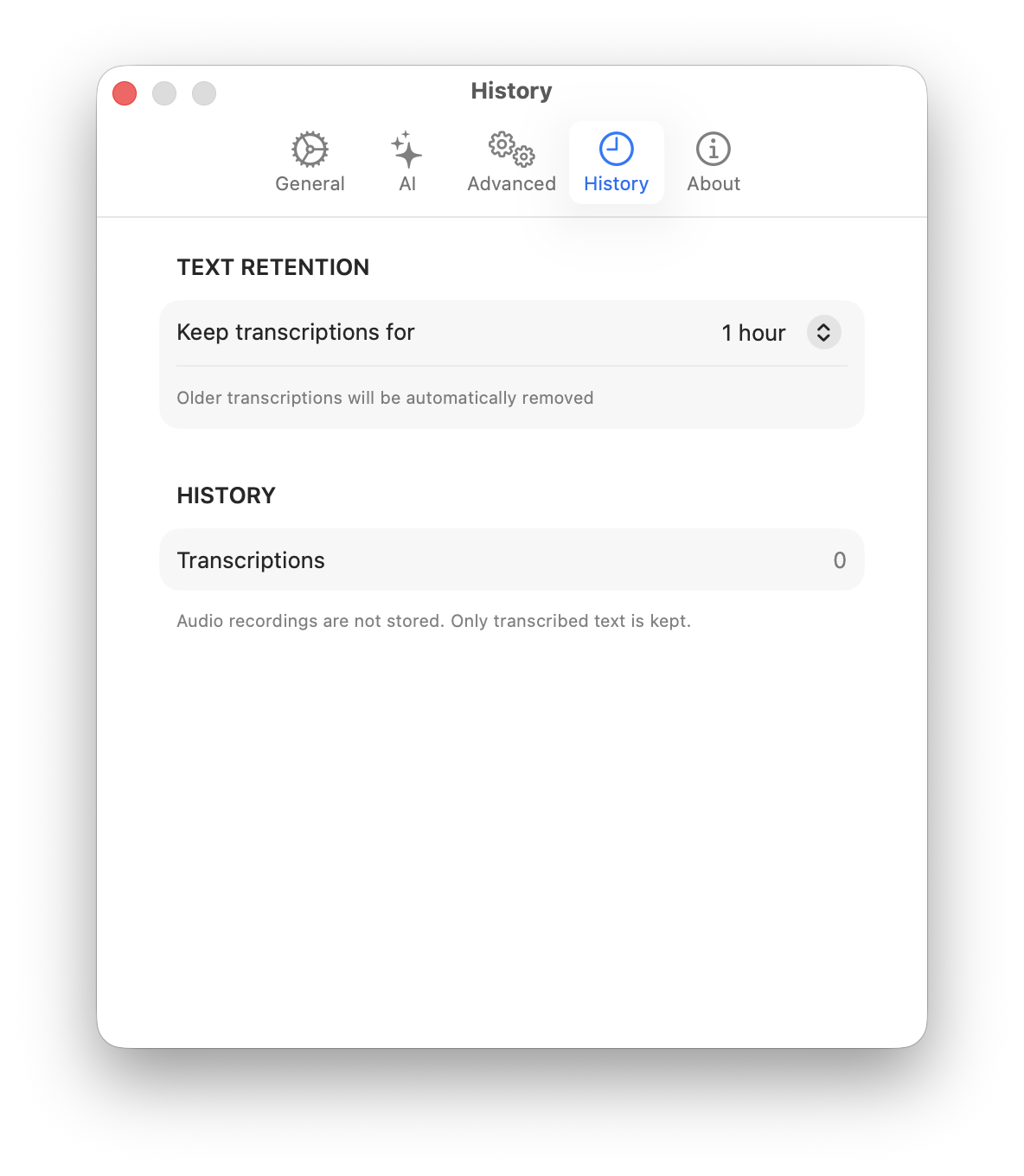
History Features
- View recent transcriptions
- Copy previous results
- Clear history when needed
- History stored locally only
History Limits
| Tier | History Limit |
|---|---|
| Free | Limited recent entries |
| Pro | Unlimited history |
| Premium | Unlimited history |
Continuous Dictation
Long Recordings
Yooz Whisper supports extended dictation:
- No arbitrary time limits
- Process as you speak
- Works for long documents
Best Practices for Long Dictation
- Pause occasionally for processing
- Review output periodically
- Save work frequently
- Use in quiet environment
Keyboard Shortcut Details
Setting Up
- Open Settings → General
- Find Keyboard Shortcut section
- Click the shortcut field
- Press desired key combination
- Shortcut is saved automatically
Recommended Shortcuts
| Shortcut | Notes |
|---|---|
Option + Space | Natural, accessible |
Control + Option + W | Whisper-specific |
Fn + F5 | Function key based |
Control + Shift + D | Dictation style |
Shortcut Behavior
- First press: Start recording
- Second press: Stop recording
- Works globally (in any app)
- Respects Do Not Disturb settings
Learn More
- AI Features - Enhance transcription quality
- Settings Reference - All options explained
- Privacy - How your data stays safe