AI Features
Enhance your transcriptions with on-device AI.
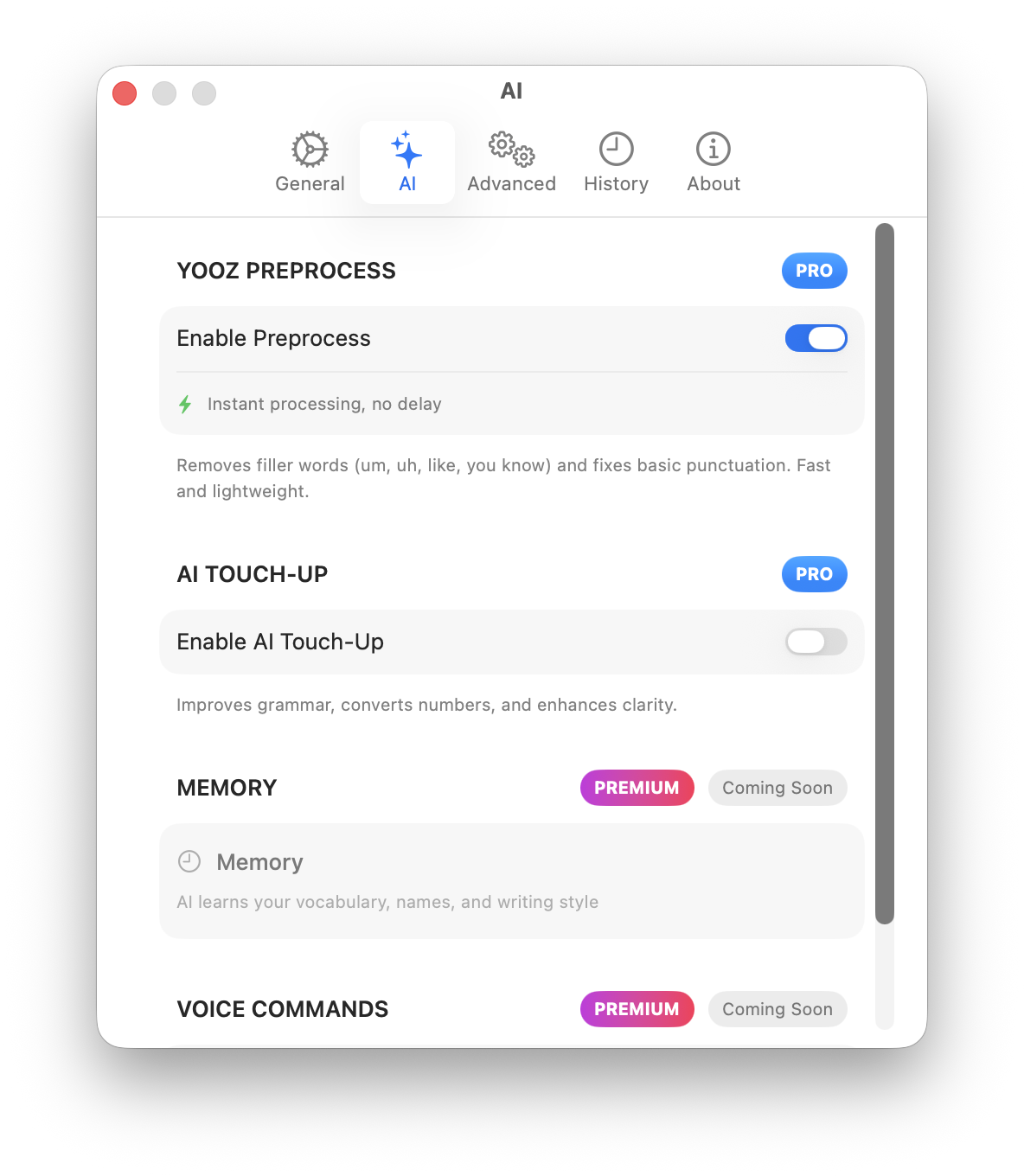
Overview
Yooz Whisper offers optional AI-powered features to improve transcription quality. All AI processing happens on your Mac using Apple Intelligence, never in the cloud.
Available AI Features:
- YOOZ Preprocess - Real-time text enhancement during transcription
- AI Touch-Up - Post-transcription refinement
Requirements
Apple Intelligence
AI features require Apple Intelligence:
| Requirement | Specification |
|---|---|
| macOS | 15.0 (Sequoia) or later |
| Processor | Apple Silicon (M1 or later) |
| Apple Intelligence | Enabled in System Settings |
Enabling Apple Intelligence
- Open System Settings
- Go to Apple Intelligence & Siri
- Enable Apple Intelligence
- Wait for models to download (first time only)
Apple Intelligence uses on-device Foundation Models. Your data never leaves your Mac. Apple does not have access to your transcriptions or AI processing.
YOOZ Preprocess
What It Does
YOOZ Preprocess enhances your transcription in real-time:
- Auto-punctuation - Adds periods, commas, question marks
- Capitalization - Proper sentence capitalization
- Grammar cleanup - Minor grammar corrections
- Formatting - Better paragraph structure
Enabling YOOZ Preprocess
- Open Settings → AI
- Toggle YOOZ Preprocess ON
- Recording will now use AI enhancement
When to Use
Best for:
- Professional documents
- Emails and messages
- Long-form content
- When you want polished output
Consider disabling for:
- Quick notes
- Technical terminology
- When you need exact transcription
Preprocess Settings
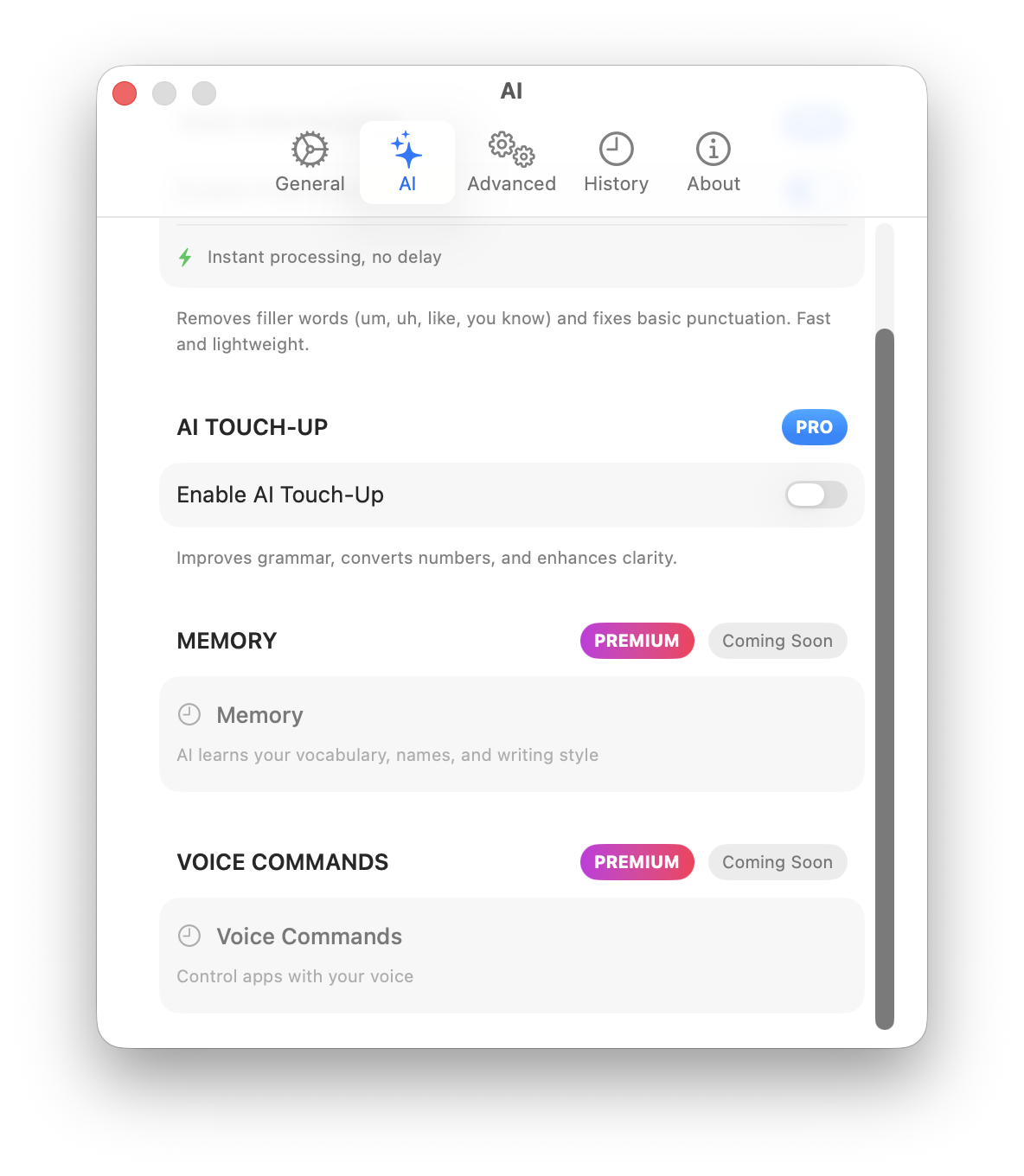
Customize preprocessing behavior:
| Setting | Description |
|---|---|
| Enhancement Level | Light, Medium, or Strong |
| Preserve Technical Terms | Keep specialized vocabulary |
| Format Paragraphs | Auto-create paragraph breaks |
AI Touch-Up
What It Does
AI Touch-Up refines transcription after recording:
- Review transcription first
- Apply AI enhancement manually
- More control over final output
- Option to compare before/after
Using AI Touch-Up
- Complete a transcription
- Review the raw text
- Click Touch-Up button
- AI enhances the text
- Copy the improved version
Touch-Up vs Preprocess
| Aspect | YOOZ Preprocess | AI Touch-Up |
|---|---|---|
| Timing | During recording | After recording |
| Control | Automatic | Manual trigger |
| Review | Enhanced immediately | Before and after |
| Best for | Polished output | When you want to review |
AI Enhancement Examples
Example 1: Casual Speech
Raw transcription:
so i was thinking we could maybe um have the meeting on tuesday instead of monday because you know john is traveling
With AI enhancement:
So I was thinking we could have the meeting on Tuesday instead of Monday, because John is traveling.
Example 2: Technical Content
Raw transcription:
the api endpoint accepts json payloads with authentication headers and returns a structured response object
With AI enhancement:
The API endpoint accepts JSON payloads with authentication headers and returns a structured response object.
Example 3: Long Form
Raw transcription:
first we need to review the project timeline then discuss budget allocations and finally assign tasks to team members the deadline is end of quarter
With AI enhancement:
First, we need to review the project timeline. Then, we'll discuss budget allocations and finally assign tasks to team members. The deadline is end of quarter.
Privacy & AI
On-Device Only
All AI processing uses Apple's on-device Foundation Models:
- Models run locally on your Mac
- No internet connection required for AI
- Audio and text never sent to servers
- Same privacy as regular transcription
What Apple Sees
Nothing. Apple Intelligence processes everything on-device:
- Apple cannot access your transcriptions
- Apple cannot access AI processing
- No telemetry about AI usage
- Fully private operation
Performance
Processing Speed
AI enhancement adds minimal latency:
| Feature | Additional Time |
|---|---|
| YOOZ Preprocess | Near real-time |
| AI Touch-Up | 1-3 seconds |
Resource Usage
AI features use the Neural Engine:
- Minimal CPU impact
- Optimized for Apple Silicon
- Efficient power usage
- No noticeable slowdown
Troubleshooting
AI Features Not Available
Symptoms: AI options grayed out or missing
Solutions:
- Verify macOS 15.0 or later
- Check Apple Silicon Mac (M1+)
- Enable Apple Intelligence in System Settings
- Wait for models to download completely
- Restart Yooz Whisper
AI Enhancement Not Working
Symptoms: Transcription not enhanced
Solutions:
- Verify AI is enabled in Settings → AI
- Check Apple Intelligence is active
- Try restarting the app
- Check system resources
Poor AI Results
Symptoms: AI makes text worse
Solutions:
- Lower enhancement level
- Enable "Preserve Technical Terms"
- Use AI Touch-Up for manual control
- Report feedback for improvement
Best Practices
When to Use AI
Enable for:
- Professional communication
- Long-form writing
- When appearance matters
- Non-technical content
Disable for:
- Technical terminology
- Code dictation
- When exact words matter
- Quick informal notes
Optimization Tips
- Start with Medium - Adjust enhancement level as needed
- Review important text - Use Touch-Up for control
- Preserve technical terms - Enable for specialized content
- Combine with editing - AI assists but doesn't replace proofreading
Future AI Features
We're exploring additional AI capabilities:
- Summarization
- Translation
- Format conversion
- Custom writing styles
All future AI features will maintain our on-device, privacy-first approach.
Learn More
- Voice Typing - Core transcription features
- Privacy - How we protect your data
- Settings Reference - All options explained