Your first Ubuntu desktop
Before you start
You need an Apple silicon Mac running macOS 26 or later. Intel Macs are not supported. An internet connection is needed for the first operating system download and Apple subscription services. After setup, the VM and its files remain on your Mac; apps you use inside Ubuntu can still make their own internet connections.
Allow room for the operating system download, its unpacked base image, and your VM's writable disk. Transit checks available space and shows the download and disk choices in New VM. The first compressed download is approximately 1.5 GB for Ubuntu 24.04 or 1.7 GB for Ubuntu 26.04. Leave extra space for documents and Linux apps you install later.
Open Transit
Install the build made available through the App Store or TestFlight. There is no separate license key or installer edition. For an App Store installation, Transit checks access and shows Start using Transit setup if needed. Use setup to confirm Transit Annual with Apple or restore an existing subscription before starting a VM. An active, verified trial or subscription skips setup. Read the trial and restore instructions before confirming a purchase. You can dismiss setup to inspect the library and local files; starting a VM still requires verified access. TestFlight installations are free while the build remains available in TestFlight.
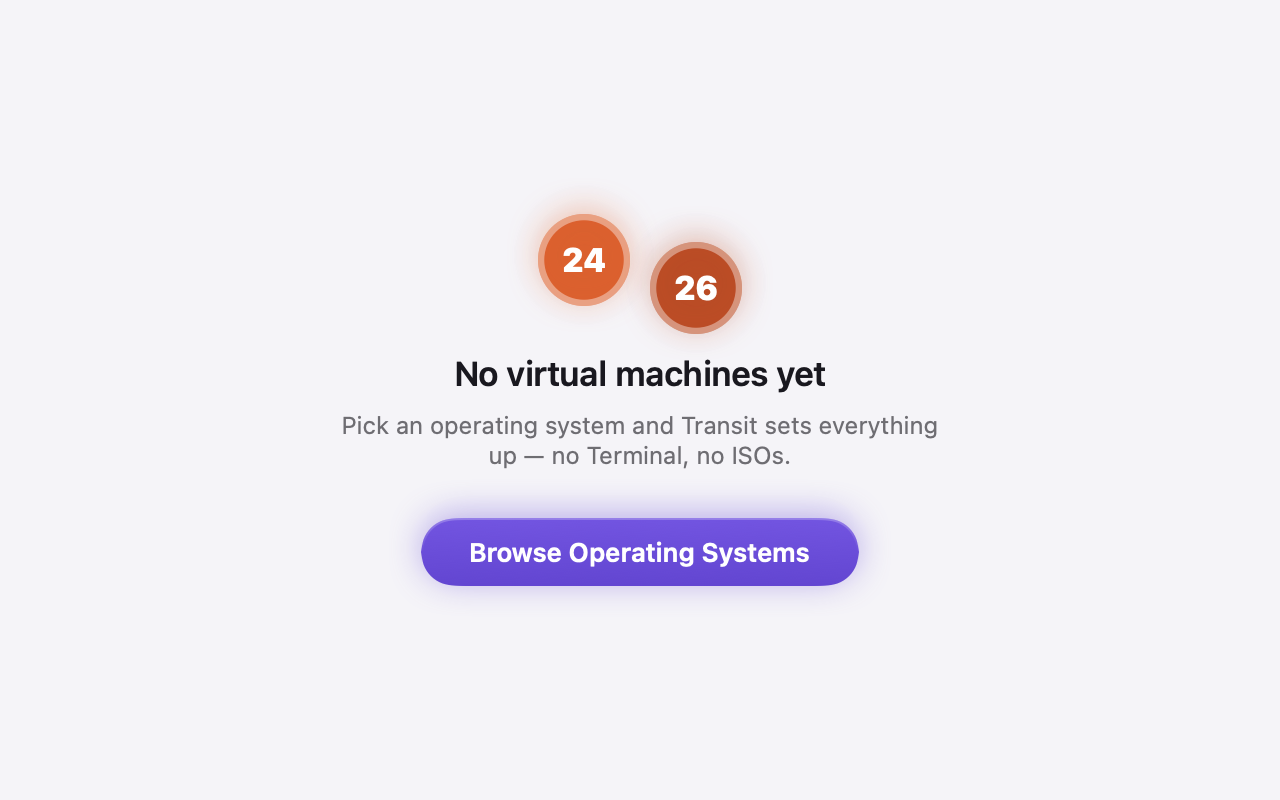
The real empty-library component, rendered with no saved VMs. Open an image to view it at full size.
Create a VM
- Choose New VM, or Browse Operating Systems from an empty library.
- Select Ubuntu 24.04 LTS or Ubuntu 26.04 LTS.
- Give the VM a name, such as
Ubuntu Work. - Review Processor, Memory and Disk. The offered ranges depend on the Mac's resources and available storage. Start with the offered defaults; allocating more memory or processors leaves less for macOS.
- Leave GPU acceleration enabled for the desktop.
- If the image is not downloaded, use the download action shown in the sheet. Wait for it to complete before launching.
- Choose Create & Launch.
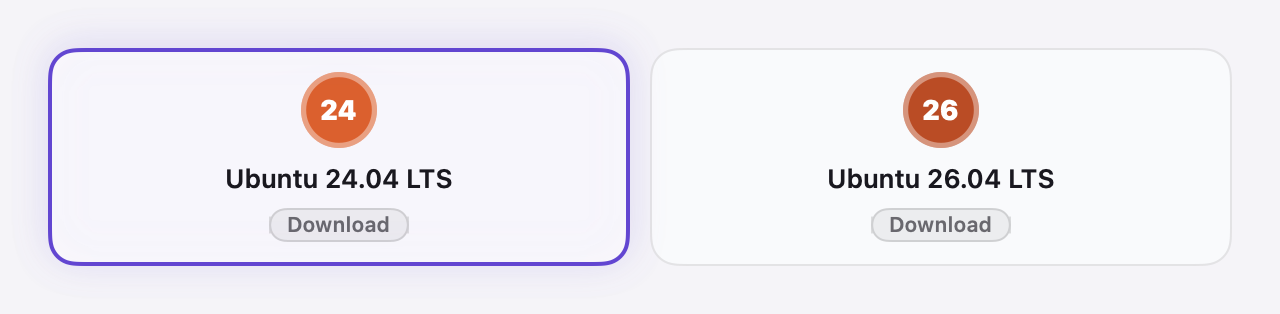
Ubuntu 24.04 is selected in this component capture; both sample images show Download.
Transit downloads its curated disk and kernel from Hugging Face, checks them against a signed catalog, and creates your VM's writable disk locally. The download changes the guest operating system content; it does not install an extension into the Mac app. See the privacy policy for these connections.
You can cancel a download from the create sheet. Keep the sheet open while downloading; closing it cancels its active downloads. If the download fails, read the message and retry once your network or storage problem is resolved.
Choose the guest account
Advanced > Desktop account contains the Ubuntu username and password used for this VM.
The preset defaults are transit and transit.
Choose your own password before the first launch, especially if you intend to enable SSH.
Transit stores the saved password locally in your Mac's Keychain;
macOS may ask for access when you save or start the VM.
Use the desktop
Wait for Ubuntu to draw its desktop, then click inside it to type. Open Firefox, LibreOffice or Terminal from Ubuntu's app launcher. Documents saved in Ubuntu's home folder stay on that VM's disk. To bring a document back to macOS, use a shared folder.
Finish a session
Save your work, then use Ubuntu's power menu to shut down. You can also request shutdown from Transit's Stop control. Ubuntu may ask for confirmation inside the guest; respond to that dialog and wait for Transit to show Stopped. Use Force Stop only when normal shutdown cannot complete, because it can lose unsaved work. More about pause and shutdown.