Advanced Linux tools
Use the curated Ubuntu choices for the simplest desktop setup. These tools are available when you need to inspect or configure the guest more closely.
VM configuration
Stop the VM before changing its configuration. Choose Configure… from the library or the VM window's More (…) menu. The pane contains the VM name, hardware, network/GPU options, disk usage, shared folder, guest account and an Advanced disclosure. Running or paused VMs show configuration as read-only.
Settings > General contains defaults for new VMs, guest SSH and shutdown behavior. Changing a new-VM default does not rewrite an existing VM's configuration. Leave the hardware memory-ordering policy at its default unless a specific workload requires another choice; it is not a Windows-app launcher or a substitute for a supported guest.
Local SSH
SSH lets a terminal on this Mac connect to the running Ubuntu VM. It is off by default. The curated images have a well-known default password, so choose a private guest password and leave SSH off unless you need it.
- Open Settings > General > Guest SSH access and enable it.
- Ensure Network is enabled in the VM's configuration.
- Start the VM, or shut down and start it again if it was already running.
- Open macOS Terminal and connect:
ssh -p 2222 transit@127.0.0.1
Replace transit with your configured guest username.
The default local port is 2222; the Serial Console reports the actual port when it starts.
Use the VM account password you chose.
The listener is bound to 127.0.0.1 only,
so it can be reached from this Mac, not other computers on the network.
It exists only while the VM is running.
Turning the setting off takes effect on the next VM start.
There is no need to expose a router port or enable remote login on macOS.
Serial Console
Open More (…) > Serial Console in the VM window. The console shows guest boot messages and accepts terminal commands independently of the graphical desktop. It is useful when Ubuntu's screen is blank or networking is unavailable.
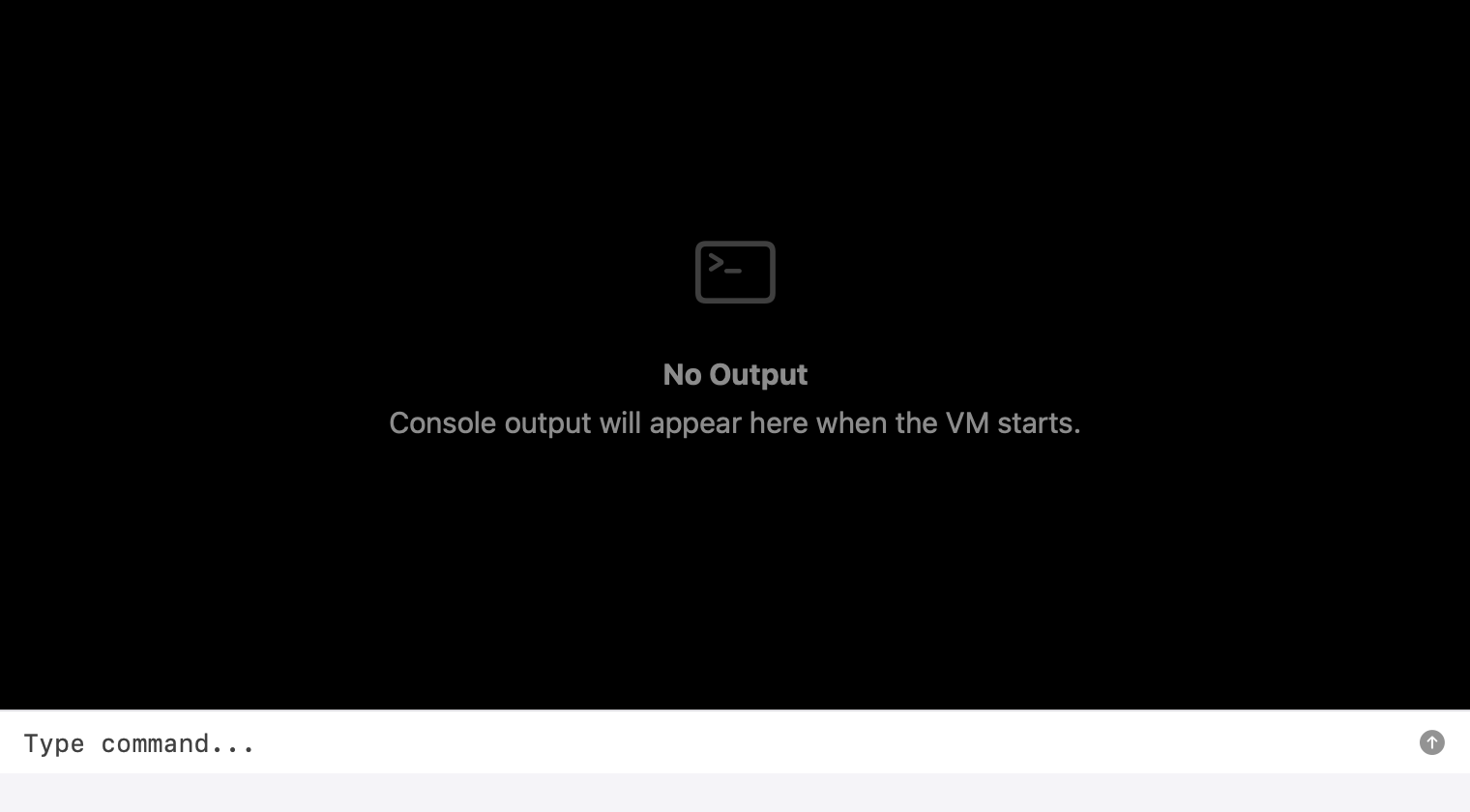
An empty console component using a sample VM; no personal logs are displayed.
Click the console's Type command… field before typing. Log in if the guest asks, then enter a command and press Return. Click the field again after working in another panel; typing into a focused guest desktop goes to the desktop instead of the serial terminal.
To shut down from a logged-in terminal:
sudo systemctl poweroff
Enter the guest password if asked, then wait for Transit to show Stopped. Use normal shutdown before closing Transit or disconnecting a VM's drive.
Custom ARM64 Linux boot images
New VM > Advanced > Custom boot images and the VM configuration's Advanced section let you select a compatible Linux kernel, optional initrd and disk image through macOS file pickers. This is an advanced boot workflow; a generic operating system installer ISO is not the same as these inputs.
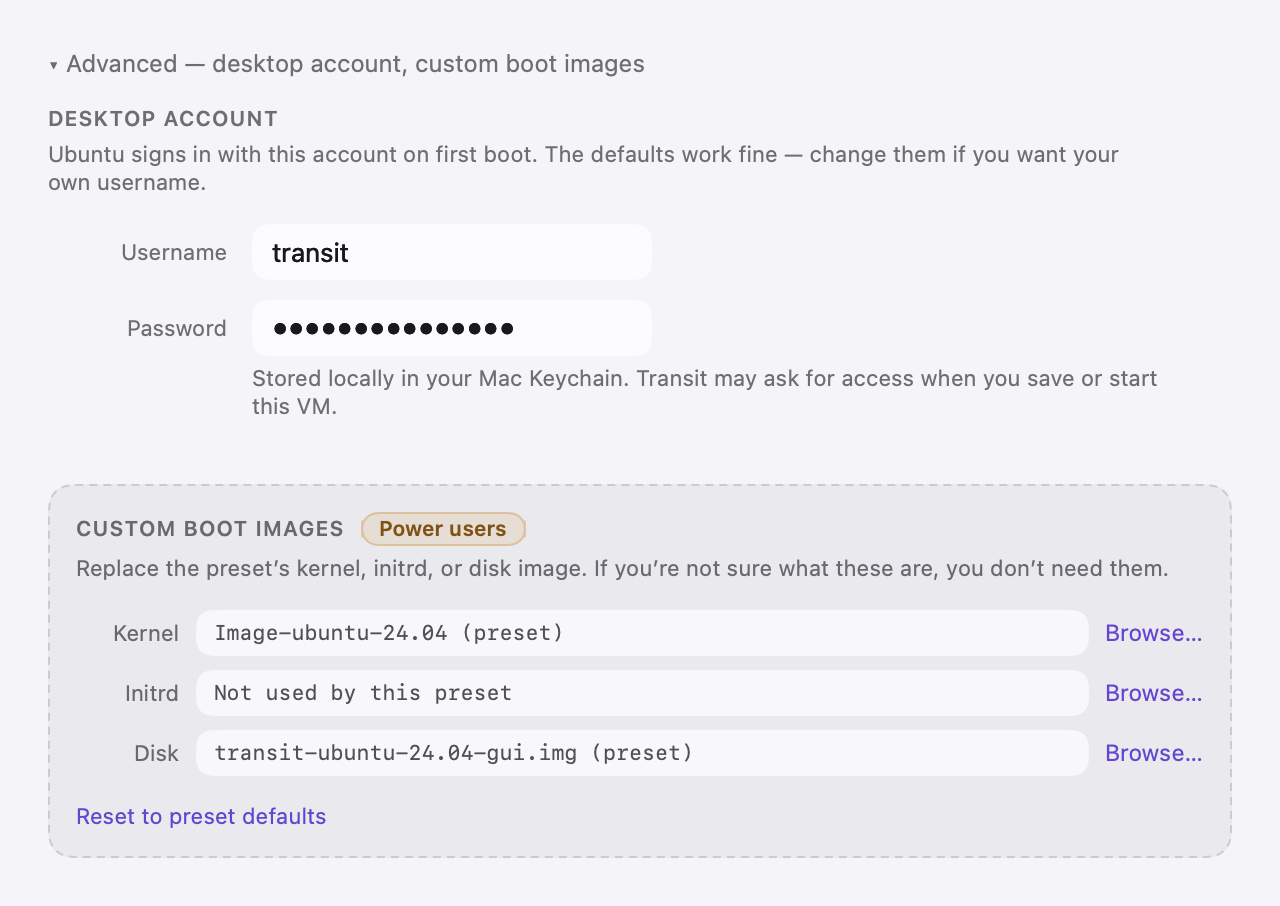
Real Advanced component with the preset files and a masked sample password.
The guest must be ARM64 Linux and compatible with Transit's virtual hardware. Use a matched kernel and disk with the required drivers and boot configuration. An x86 Windows ISO, a macOS installer, or an arbitrary ARM image is not a supported replacement for a curated Ubuntu preset. Custom-image compatibility must be checked by the person supplying the image.
- Keep a separate backup of your original image.
- Open New VM, choose a Linux preset, and expand Advanced.
- Use Browse… beside Kernel, Initrd and Disk to choose the required files.
- Review the account and resource settings, then create the VM.
- Use Serial Console to inspect boot errors if the image does not start.
Reset to preset defaults clears the custom selections in the create sheet. For an existing VM, stop it before selecting different boot files. Files selected through a picker receive macOS sandbox access grants; if you move them or disconnect their drive, select them again or reconnect the drive.
Custom guest content runs inside the VM. It does not add native Mac app features or a Windows/macOS guest backend.